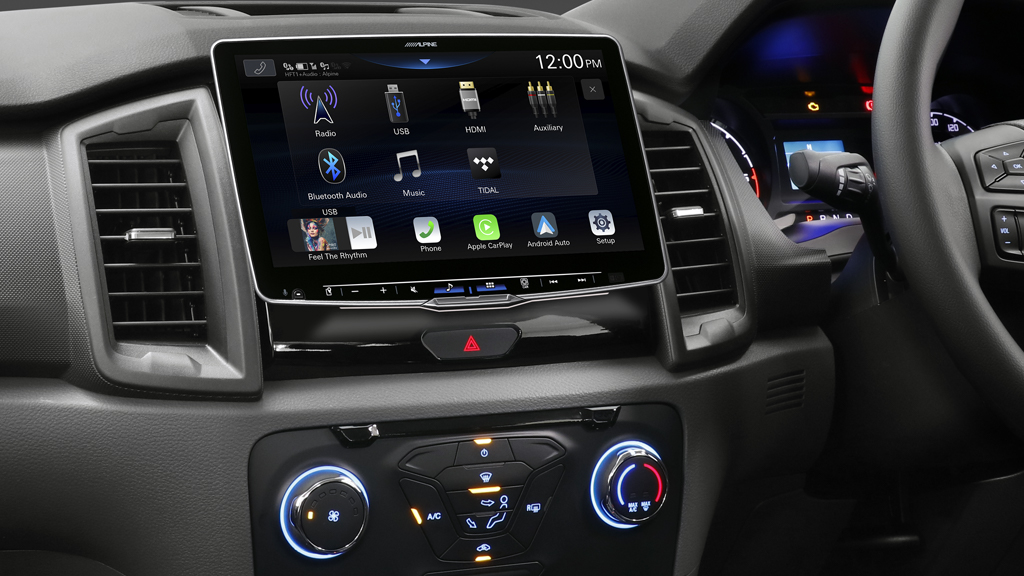

Before you begin:
– Ensure you have access to an internet connection.
– Do not interrupt the power supply to the unit during the factory reset process.
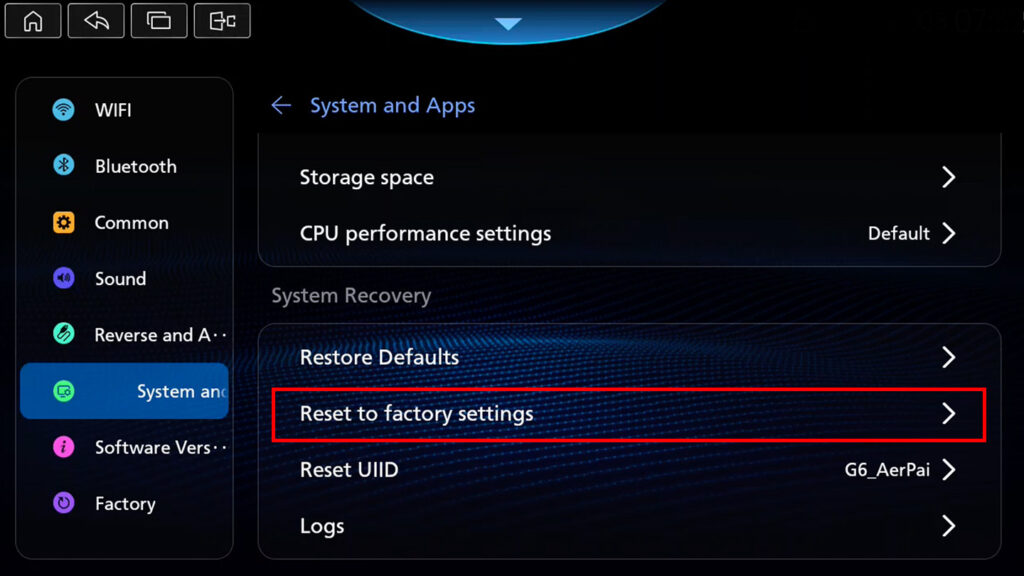
Step 1. Performing a Factory Reset (Erasing all data)
On the INE-AX809 unit, locate the settings menu press Settings and Apps, then press Reset to Factory Settings and follow the prompts. The unit will restart and return to the main menu once complete.
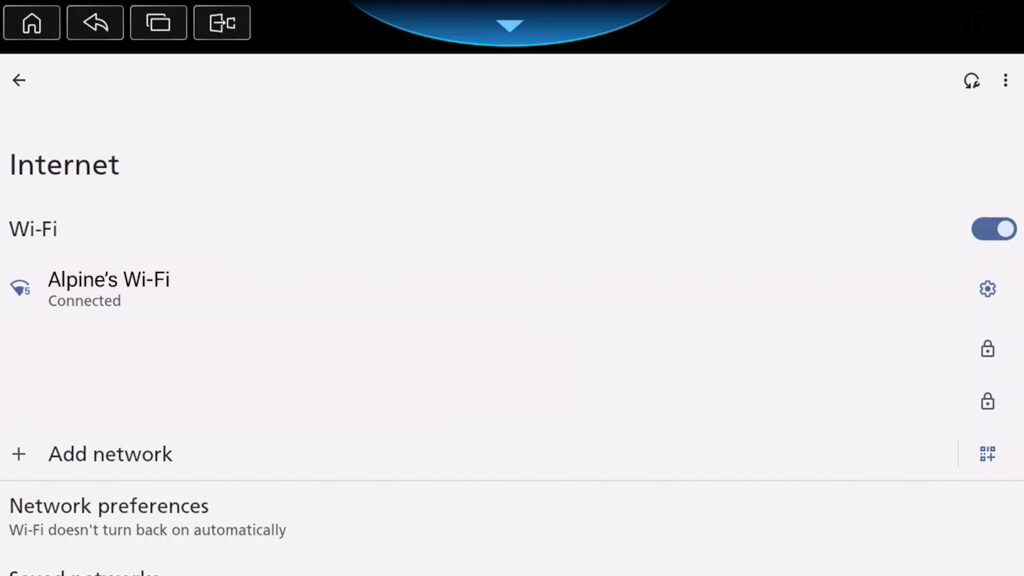
Step 2. Once reboot is complete, connect to the internet
Wi-Fi settings are located within the settings menu.
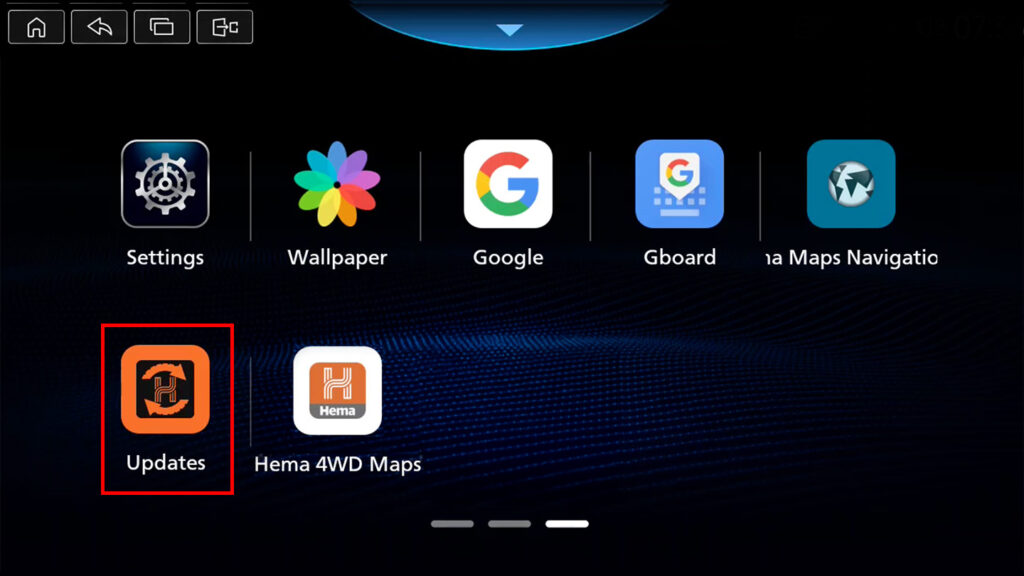
Step 3. Open the Hema Updater
Navigate to and open the Hema Updater via the All Apps icon.
Step 4. Install and activate your Hema Maps license.
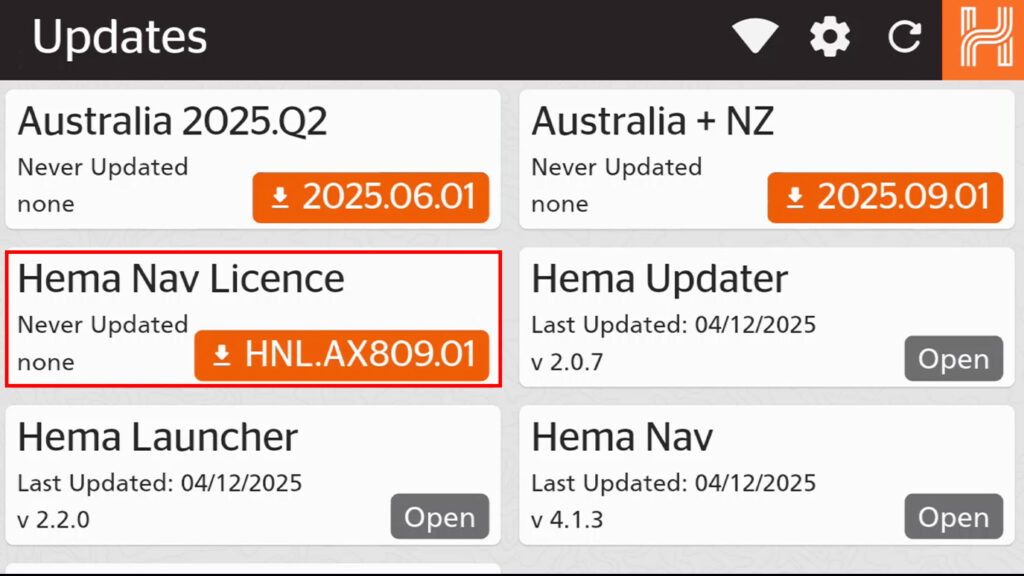
For security reasons, you need to re-install your license. Simply download, install & activate the Hema Nav License – you will be prompted to activate the license.
Step 5. Download and install the Hema Maps database.
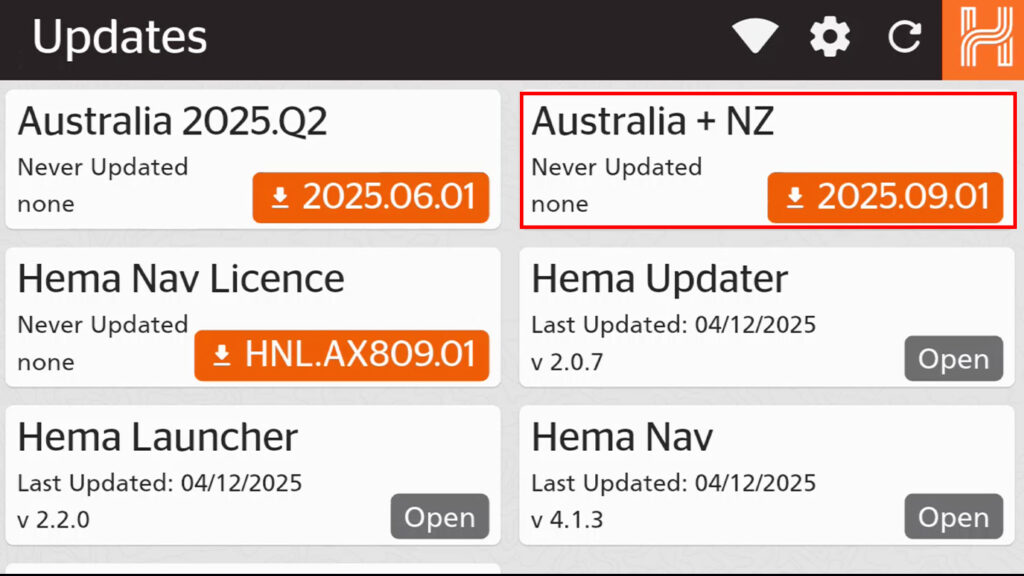
Download the Australia + NZ Map package. Once downloaded, press the install button.
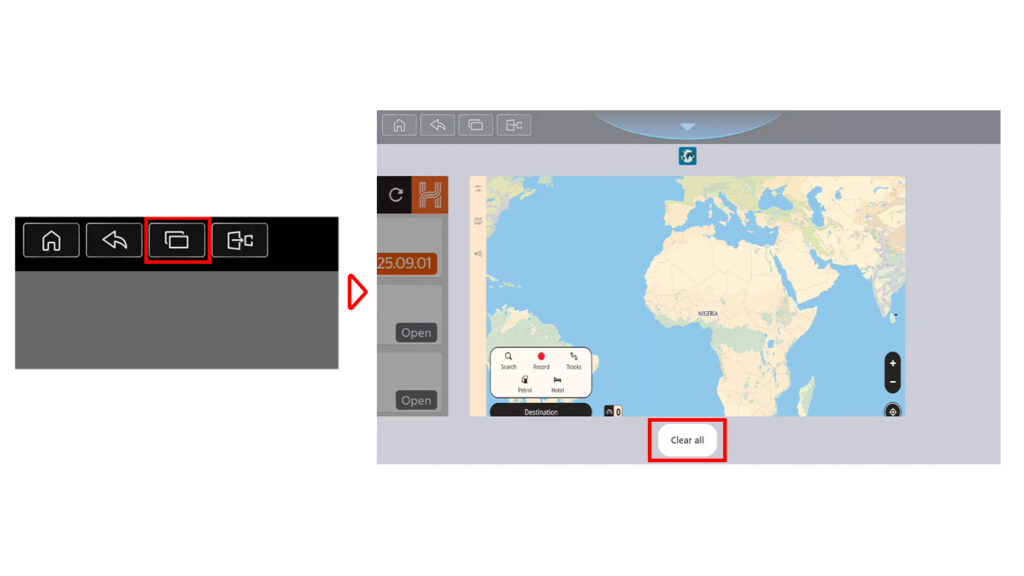
Step 6. Follow the below instructions > Press the window tile button > Clear all.
The factory reset process is complete and you have re-instated your Hema License & Map database.
End of process.